

Tangra AI Video Generator
Create top-quality AI videos instantly - no filming, no editing, no costly tools.
Overview
Tangra AI Video Generator turns a text prompt or a still image into a finished video clip using a large catalog of state-of-the-art AI video models (Veo, Kling, Seedance, Vidu, Pixverse, Minimax, Wan and more). You can create from text, animate your own images (image-to-video and multi-image-to-video), pick the duration, aspect ratio and resolution, then assemble multiple clips, images, AI music and AI narration on a timeline-based editor and export an MP4 or WebM. A Story Wizard can turn a written story into scenes, images, narration and music in one pass.
Who it’s for
- Content creators and social media managers who need short-form video (TikTok, Reels, Shorts, YouTube)
- Marketers and small businesses producing ads and promos without a film crew
- Storytellers and educators turning scripts or stories into narrated videos
- Designers and artists who want to animate their own images
- Business owners who want professional-looking video without filming
Key features
Text-to-video generation
Type a prompt and an AI model creates a video clip. Supported by text-to-video models such as Veo 3.1 / Veo 3.1 Fast and Horizon.
Image-to-video and multi-image-to-video
Upload one or more images and animate them. Models like Kling 2.1 (Standard/Pro/Master), Seedance 1.5 Pro, Vidu, Pixverse 5.5, Minimax 2 and Wan turn stills into motion; some accept first/last frame images or multiple reference images (Pro 2 supports up to 9 reference images).
Large multi-model catalog
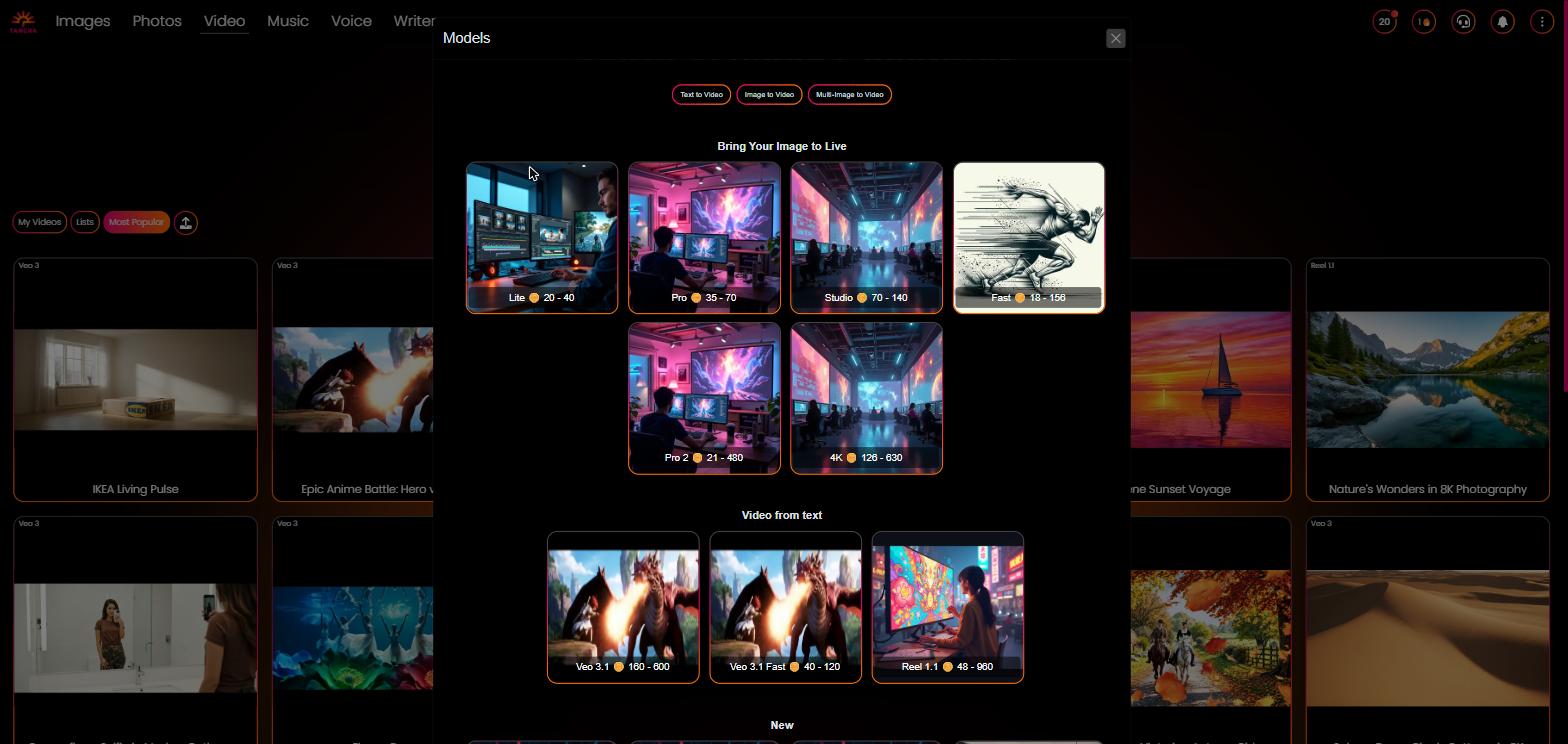
A single picker exposes many AI video engines grouped by use case (Bring Your Image to Live, Video from text, New) with per-model credit cost, duration limits and aspect-ratio options shown inline.
Adjustable duration, aspect ratio and resolution
A length slider is bounded by each model's min/max seconds and step. Aspect ratios range from 9:16, 1:1, 4:3, 16:9, 21:9 up to 4K (3840x2160 / 2880x2880 / 2160x3840) depending on the model.
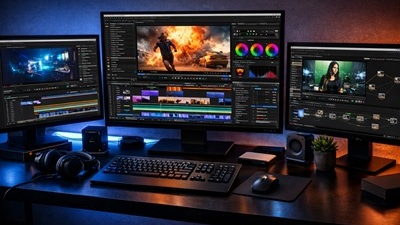
Timeline video editor
Drag generated clips, images, AI music and AI voice narration onto a multi-track timeline. Trim, reposition and layer items, add transitions (fade, slide, wipe, zoom, rotate) and per-clip effects (beat pulse, color modulation, camera pan/zoom presets).
Text and rich-text overlays
Add titles, captions and styled text layers directly on the canvas, with positioning, rotation and opacity controls.
AI music and narration
Create background music and AI voiceover from within the editor (music gallery, voice gallery, music wizard) and beat-sync visual effects to the audio.
Multiple export paths
Export in the browser with Quick (fast MediaRecorder) or Advanced (hardware-accelerated WebCodecs with codec choice), or offload a full-fidelity Server Render. Output as MP4 or WebM up to 4K.
Story Wizard
Turn a written story into a complete video - Tangra creates scenes, images, narration and music in one guided flow.
How to use it — step by step
- Open the AI Video generatorGo to https://tangra.link/video or open the app. The prompt box and model picker are the main controls.
- Choose how to createPick a mode via the model filter: Text to Video, Image to Video, or Multi-image to Video. This filters the model list to engines that support that mode.
- Select an AI modelOpen the model selector and choose a model (e.g. Veo 3.1, Kling 2.1, Seedance, Pixverse, Wan). Each model shows its credit cost, length range and aspect ratios.
- Add a prompt (and images if needed)Type your description in the prompt box. For image-to-video models, click the + button to add the required reference image(s); some models accept first and last frame or multiple references.
- Set duration and aspect ratio / resolutionUse the length slider (limited to the model's min/max and step) to set seconds, and choose an aspect ratio / size from the model's available options (portrait, square, landscape, up to 4K).
- Create the clipClick Create. Tangra renders the video; the result appears in your gallery of recent generations and can be replayed.
- Open the video editor (optional)Go to /video/editor to drag your clips, images, AI music and AI narration onto the timeline. Trim, reorder, add transitions, text overlays and effects, and preview with Play.
- Export your videoClick Export and choose Quick, Advanced (WebCodecs) or Server Render. Pick resolution, quality and format, then download the finished MP4 or WebM.
See it in action
Screens you’ll work with inside Video Generator:
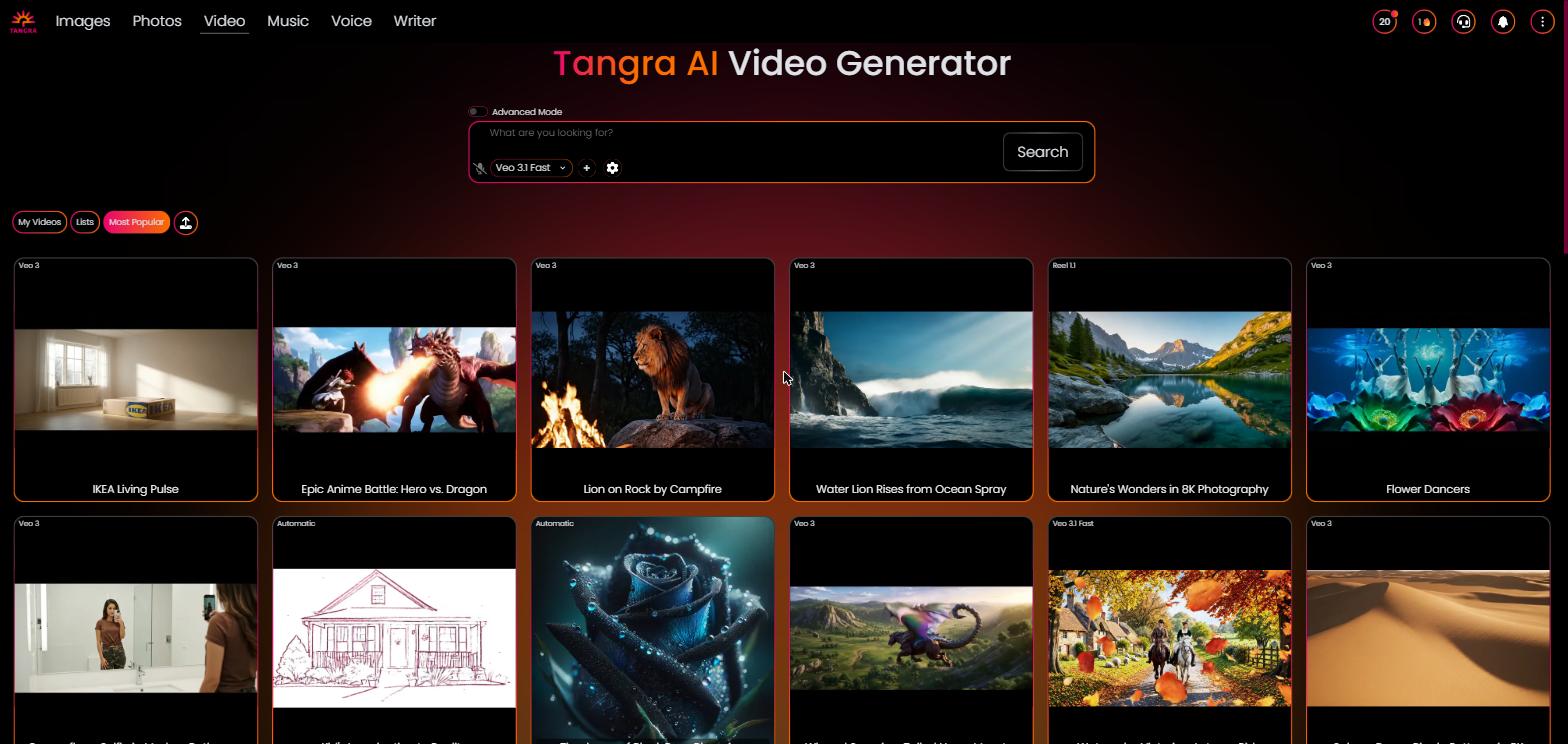
Marketing hero for the AI Video Generator showing the value proposition and a call to action to start creating.

The model picker expanded, showing grouped AI models (Bring Your Image to Live, Video from text, New) with names, credit costs and thumbnails.
The multi-track timeline editor with a clip on the canvas, tracks for video/image/music/voice, the tool panel (text, music, voice, AI edit), and the playhead/Play controls.

The export dialog showing Quick / Advanced / Server Render modes, resolution dropdown with detected aspect ratio, quality presets, format/codec options and estimated time/size.

The Story Wizard flow that turns a written story into scenes, images, narration and music.
Settings & controls
Every control in Video Generator, what it does and the options available:
| Control | What it does | Options |
|---|---|---|
| Generation mode filter | Filters the model list by capability. | Text to Video, Image to Video, Multi-image to Video |
| AI model selector | Choose the AI video engine; shows credit cost, duration range and aspect ratios per model. | Veo 3.1, Veo 3.1 Fast, Kling 2.1 Standard/Pro/Master, Kling O1, Seedance 1.5 Pro, Fast, Pro 2, 4K, Vidu 2, Vidu Q2 Pro, Pixverse 5.5, Minimax 2, Wan 2.2, Wan 2.6 |
| Prompt box | Text description of the video to create. | Free text |
| Reference image(s) | Add input images for image-to-video / multi-image models via the + button. | 1 to 9 images depending on model (some support first/last frame) |
| Length (duration) slider | Sets clip length in seconds, bounded by the selected model. | Varies by model, e.g. 4-8s (Veo 3.1), 5-10s (Kling), 3-15s (4K) |
| Aspect ratio / size | Output dimensions and aspect ratio for the generated clip. | 9:16, 1:1, 4:3, 16:9, 21:9 and up to 4K, per model |
| Timeline tracks | Multi-track editor for layering video, images, music and voice. | Video, image, music and voice/narration tracks |
| Transitions | Transition applied between overlapping clips. | Fade, Slide (left/right), Wipe (left/right), Zoom, Rotate |
| Clip effects | Per-clip motion and color effects, can be beat-synced to audio. | Beat pulse, Color modulation (brightness/contrast/saturation), Camera presets (zoom-in, zoom-out, pan-left, pan-right), Section choreography |
| Text overlays | On-canvas titles and captions with positioning. | Text and Rich Text tools |
| Export mode | How the final video is rendered. | Quick (MediaRecorder), Advanced (WebCodecs, hardware-accelerated), Server Render (cloud) |
| Export resolution | Output resolution, offered per aspect ratio with a recommended pick. | Original, 480p, 720p, 1080p, 1440p/2K, 4K (varies by aspect ratio) |
| Export quality | Bitrate/quality preset affecting file size. | Low, Medium, Balanced (High), Ultra |
| Export format / codec | Container and codec for the output file. | Auto, MP4 (H.264/H.265), WebM (VP9); WebCodecs offers HEVC/AV1/H.264; Server Render offers 24/30/60 fps |
AI models
Video Generator lets you pick from a curated lineup of AI models — each shows its credit cost in the app. Available models:
Outputs & formats
- MP4 (H.264 / H.265 export)
- WebM (VP9 export)
- Resolutions from 480p / SD up to 4K Ultra HD (3840x2160)
- Aspect ratios: 16:9, 9:16, 1:1, 4:5, 4:3, 2:3, 21:9, 2.39:1 cinema
- Generated clip lengths from a few seconds up to ~120s depending on model
- Frame rates for server render: 24, 30 or 60 fps