

Tangra AI Voice Generator
Turn any script into realistic, emotion-rich AI voiceovers in 140+ languages.

Overview
Tangra AI Voice Generator is a text-to-speech (TTS) tool that converts written scripts into natural, humanlike spoken audio. You type or dictate your text, pick from hundreds of neural voices across 140+ language/region locales, optionally apply an emotion/style with adjustable intensity and insert timed pauses, then generate a downloadable MP3. It is built for voiceovers in presentations, training videos, ads, and social content, and you can preview any voice before committing credits.
Who it’s for
- Content creators and YouTubers needing voiceovers for videos
- Marketers producing ads, promotional audio and video
- E-learning and training teams narrating courses
- Presenters and educators adding narration to slides
- Localization teams needing multilingual voiceovers across 140+ locales
- Podcasters and social media creators wanting quick spoken content
Key features
Text-to-speech from script or dictation
Type your script into the message box, or use the built-in microphone button to dictate it by voice. The generated audio reads your exact text aloud.
Hundreds of neural voices
Choose from a large catalog of Microsoft Azure neural voices, including premium HD voices (marked with a star) and multilingual voices. A preview button plays a sample of the voice you have selected.
140+ languages and regional accents
Select from a language/locale dropdown covering English (US, UK, Australia, India and more), Spanish, French, German, Chinese (Mandarin, Cantonese and regional accents), Japanese, Arabic dialects, and dozens more.
Emotions and speaking styles
For supported voices, apply a speaking style such as Cheerful, Sad, Angry, Excited, Friendly, Hopeful, Whispering, Shouting, Terrified, Narration, Newscast, Customer Service and more.
Style intensity control
When a style is selected, a slider tunes how strongly the emotion is expressed, from 0.2 (subtle) up to 2.0 (intense).
Insert timed pauses
A pause menu inserts silence at the cursor: S (300 ms), M (500 ms), L (1 second), or XL (2 seconds), giving you control over pacing.
Gender filter and instant preview
A Woman/Man toggle filters the voice list by gender, and a preview play button renders a short sample of the selected voice (auto-translated to the chosen language for non-English voices).
My Voiceovers library
Every generation is saved to your library where you can play, download as MP3, or delete it; in-progress jobs show a queue/progress indicator.
How to use it — step by step
- Open the Voice GeneratorGo to https://tangra.link/voice. If you are not signed in, click 'Log in to Create' and sign in (passwordless login is supported) to start generating.
- Enter your scriptType the text you want spoken into the message box (placeholder 'Your message (max. 2000 chars)…'), or click the microphone icon to dictate it. A script holds up to 2000 characters; pauses don't count towards that. You can edit the text freely before generating.
- Choose a language/localeIn the voice settings, pick a language and region from the dropdown (e.g. English (United States), Spanish (Mexico), Japanese).
- Filter by gender and select a voiceUse the Woman/Man toggle to filter, then choose a voice from the voice dropdown. Starred (⭐) entries are HD voices. Click the preview play button to hear a sample first.
- Optionally add an emotion/styleIf the chosen voice supports styles, pick one from the Style dropdown (e.g. Cheerful, Sad, Narration) and adjust the intensity slider to taste.
- Optionally insert pausesPlace your cursor in the script and use the pause button to insert S (300 ms), M (500 ms), L (1 s), or XL (2 s) breaks for better pacing. Pauses don't count towards the 2000-character limit.
- Create the audioClick Create. The job enters the queue and shows a progress bar; the cost is calculated from your script length.
- Play, download, or manage the resultWhen finished, the clip appears in 'My Voiceovers'. Click play to listen, download it as an MP3, or delete it. Re-create or tweak the script as needed.
See it in action
Screens you’ll work with inside Voice Generator:

The marketing/entry screen showing the 'Tangra AI Voice Generator' headline, the 'Log in to Create' button, the tutorial video player, and customer reviews.
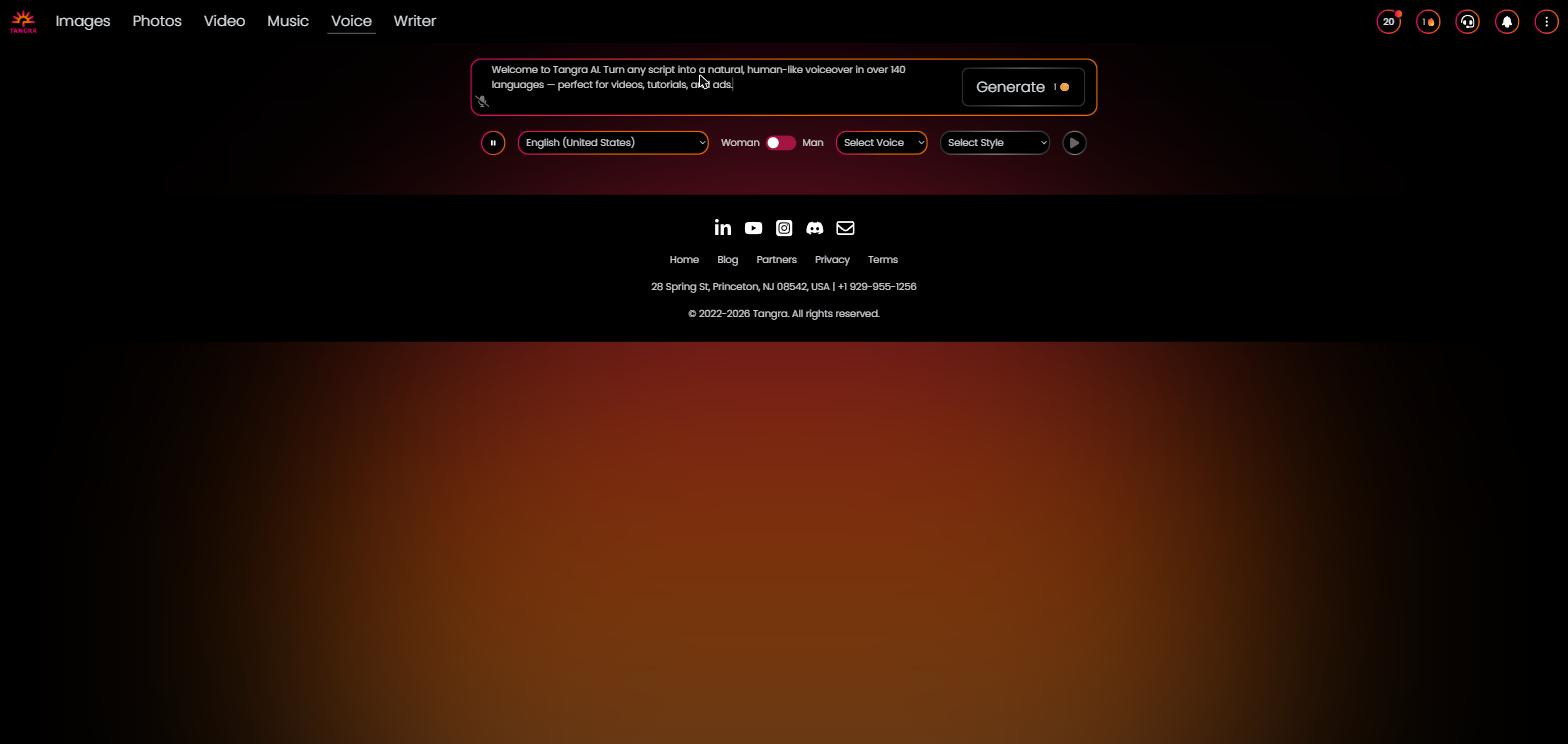
The working generator with the empty script box ('Your message (max. 2000 chars)…'), the voice settings row (language dropdown, Woman/Man toggle, voice dropdown, style dropdown, pause and preview buttons), and the Create button.

A filled-in script with a language and voice selected, a style chosen, and the intensity slider visible, showing the live credit price on the Create button.
Settings & controls
Every control in Voice Generator, what it does and the options available:
| Control | What it does | Options |
|---|---|---|
| Script / message box | Multi-line text input for the text to be spoken; supports inline SSML <break/> pause tags. Includes a microphone button for voice dictation. | Free text, up to 2000 characters (pauses don't count) |
| Language / locale dropdown | Selects the language and regional accent of the voice catalog. | 140+ locales (English US/UK/AU/IN, Spanish ES/MX/AR, French, German, Chinese Mandarin/Cantonese/regional, Japanese, Korean, Arabic dialects, Hindi, Portuguese, and many more) |
| Gender toggle | Filters the available voices by gender. | Woman (Female) / Man (Male) |
| Voice dropdown | Selects the specific neural voice; HD voices are marked with a star and sorted to the top of the list. Use the preview button beside the dropdown to hear the selected voice. | Hundreds of voices per language; includes DragonHD (HD) and Multilingual variants |
| Style / emotion dropdown | Applies a speaking style to supported voices; disabled when the chosen voice has no styles. | e.g. Cheerful, Sad, Angry, Excited, Friendly, Hopeful, Whispering, Shouting, Terrified, Calm, Gentle, Narration, Newscast (Casual/Formal), Customer Service, Chat, Empathetic, Assistant |
| Style intensity slider | Controls how strongly the selected style is applied (only shown when a style is chosen). | 0.2 to 2.0, in steps of 0.2 (default 1) |
| Insert pause menu | Inserts a timed silence (SSML break) at the cursor position in the script. | S (300 ms), M (500 ms), L (1 s), XL (2 s) |
| Voice preview button | Plays a short demo of the selected voice/style; non-English voices are auto-translated for the sample. | Play / loading |
| Create button | Submits the job to the queue and shows the credit cost; disabled until both a non-empty script and a voice are selected. | Enabled / disabled, with live price display |
AI models
Voice Generator lets you pick from a curated lineup of AI models — each shows its credit cost in the app. Available models:
Outputs & formats
- MP3 audio file (downloadable and playable in-browser)
- Saved automatically to the 'My Voiceovers' library for replay, re-download, or deletion
- Voice preview clips (a short demo sentence rendered on demand before generating)